
CarMirror
Your Android phone's apps on the Tesla screen. Direct over your hotspot, low lag, and built to keep playing while you drive.
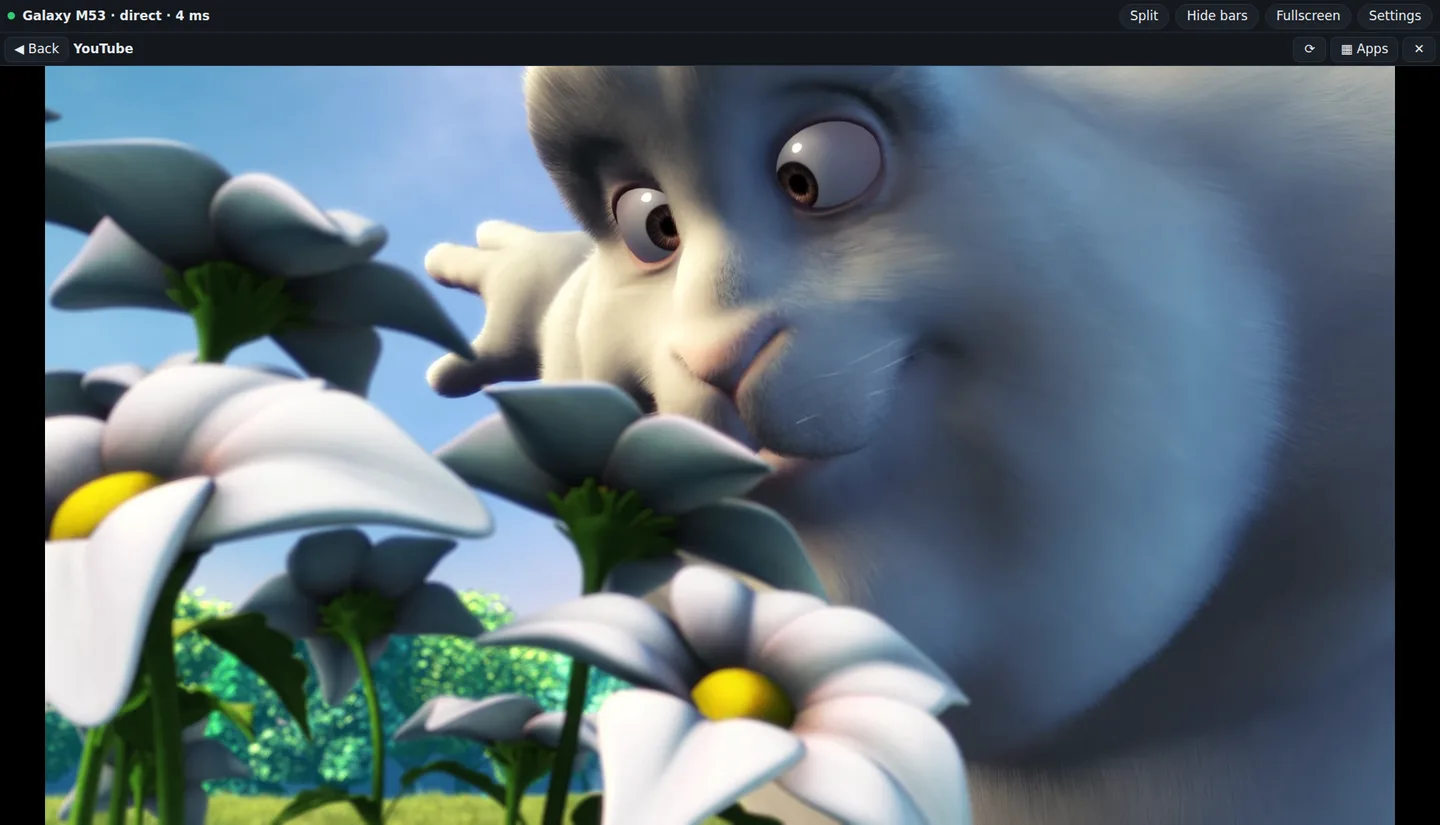
What it does
Screenshots
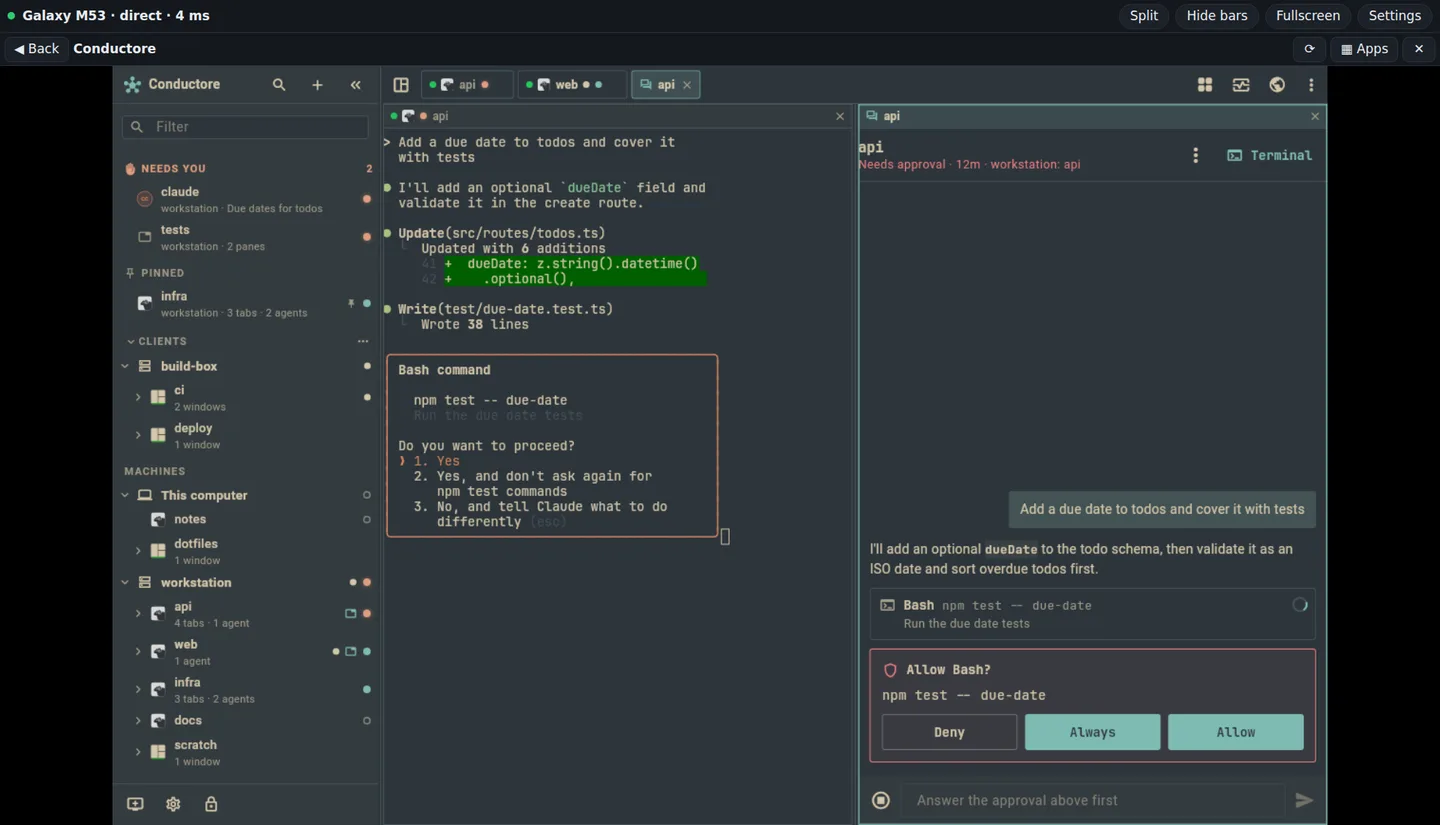
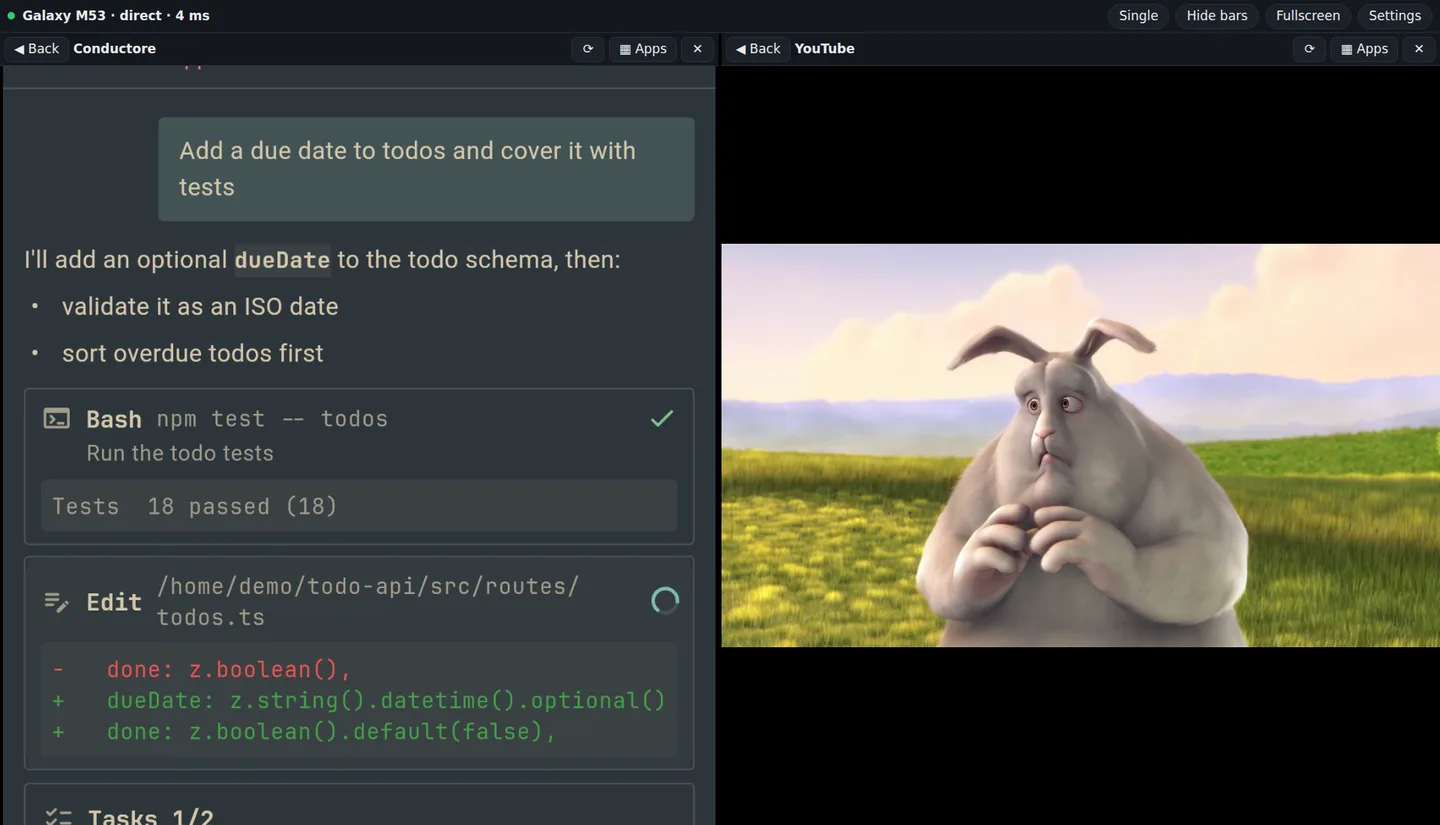
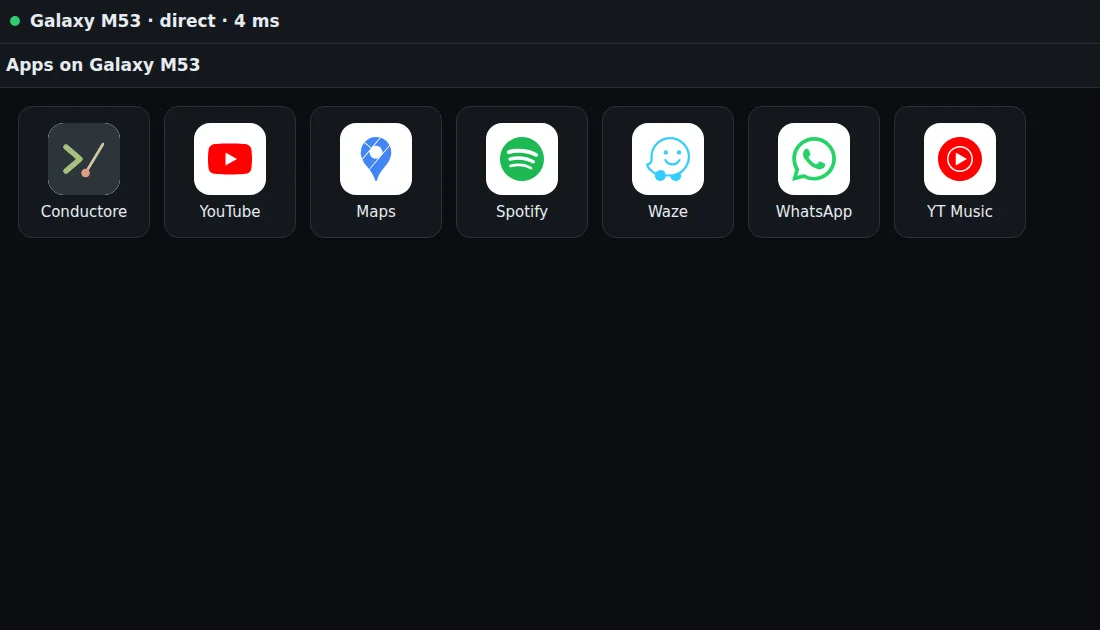
What you need
- An Android phone (Android 11 or newer) with mobile data and a hotspot.
- A Tesla with the in-car browser. Tested on a 2023 Model Y; newer Teslas with the AMD computer work best.
- Recommended: Shizuku. With it CarMirror switches your hotspot to car mode, so the Tesla can reach the phone directly, and gives each app its own car-sized screen with split view. Without it, the stream goes through the server (uses mobile data).
Setup on the phone (once, about 5 minutes)
- Install the app from the download page. Your browser will ask to allow installing apps from it.
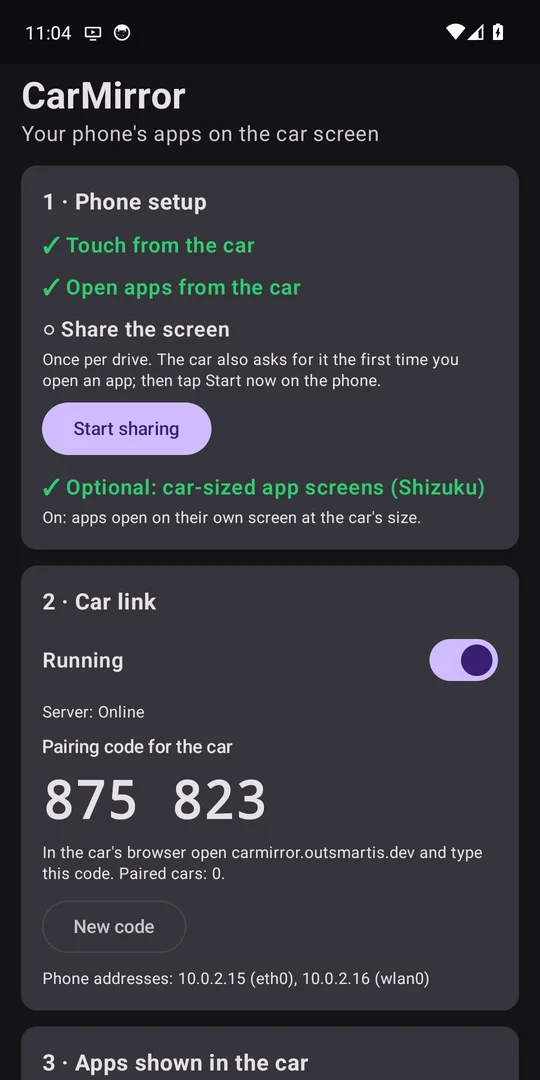
- Open CarMirror and follow Setup:
- Touch from the car: Settings → Accessibility → Installed apps → CarMirror → on. If the switch is greyed out: App info → ⋮ (top right) → Allow restricted settings, then try again. (Android asks this for apps not installed from the Play Store.)
- Open apps from the car: allow "Display over other apps".
- Let CarMirror run in the background, so Android doesn't stop it during a drive.
- Optional: Navigation and notifications in the car: tap Notification access and turn CarMirror on.
- Pick your apps in Apps in the car.
- Recommended: install Shizuku and start it with Wireless debugging (needs Wi-Fi, once after every phone restart). Then tap Allow in CarMirror. It turns on the car hotspot (direct link) and car-sized screens. For voice typing, also allow the mic under Voice typing from the car.
- Without Shizuku: allow Sound in the car, and tap Start sharing before you drive.
- Tip: on Samsung, a Modes & Routines rule "when connected to the car's Bluetooth → turn on hotspot" makes every drive hands-free.
In the car
- Turn on the phone's hotspot and connect the car to it (car Wi-Fi settings).
- Open the car's browser at
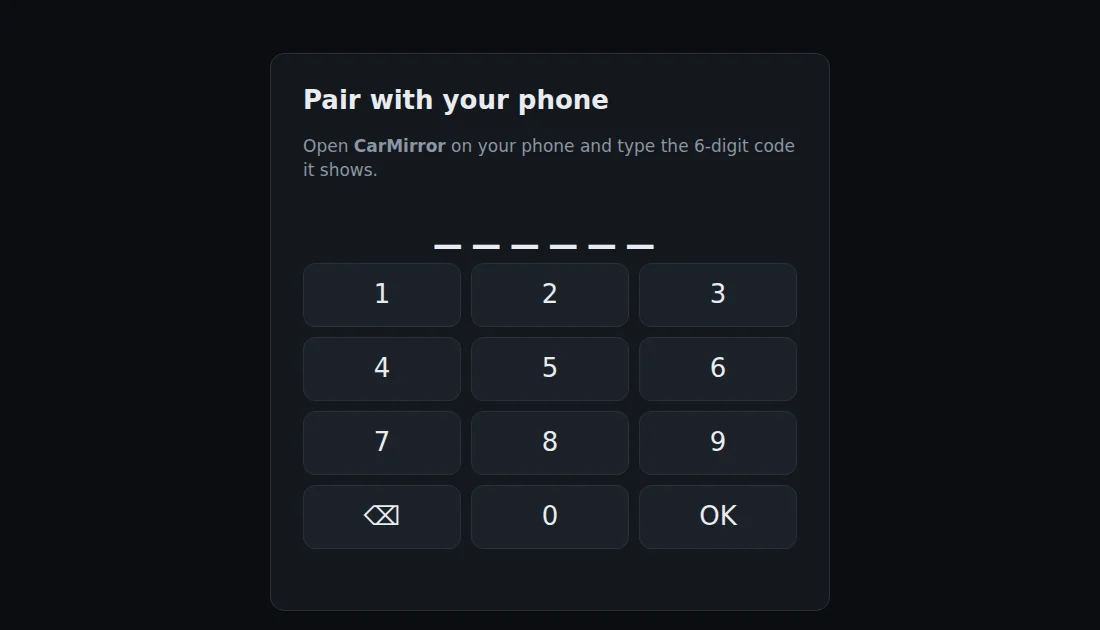
carmirror.outsmartis.dev. - The first time, type the 6-digit code shown in the phone app. The car stays paired after that.
- Tap an app. Without Shizuku, the phone asks once per drive to share its screen: tap Start now (or tap Start sharing in the phone app before you leave).
In the car: Hide bars gives the app the whole screen, and Settings has video quality, frame rate, text size, focus mode, sound, the on-screen keyboard (Auto, On or Off), notifications and connecting through the server. Sound comes through the car's speakers via the browser, and the car's media card shows what's playing; its play, pause and skip buttons control the phone. The speaker on an app's bar mutes just that app, so music from the phone keeps playing over Bluetooth.
Typing: tap a text field on the car screen, then type on any keyboard, or tap the mic and speak. With the keyboard set to Auto, the phone's on-screen keyboard stays away while a physical keyboard is connected. Tapping the navigation card opens the navigation app.
Optional: pick the car's Bluetooth under Start with the car in the phone app, and CarMirror starts when the phone connects to the car and stops when it disconnects.
Two modes
| Phone screen (default) | Car-sized screens (Shizuku running) | |
|---|---|---|
| Setup | Nothing extra | Shizuku started once after each phone restart (needs Wi-Fi) |
| Picture | What the phone shows. Turn it sideways for wide apps such as YouTube | Each app at the car's exact size, no black bars |
| Apps at once | One | Two, side by side (Split) |
| Phone screen | Stays on, showing the app | Free, or locked in your pocket |
CarMirror picks the mode by itself: car-sized screens when Shizuku is running, the phone screen otherwise.
How it works
In car mode, nothing you watch goes through the server: it only handles pairing and helps the two find each other. Without car mode, or when the direct link fails, the stream is relayed through it.
Good to know
- Apps that block screenshots (banking, Netflix and similar) show black. That's the app's choice and can't be worked around.
- The Tesla browser refuses private network addresses, which every normal phone hotspot uses. That's why CarMirror switches the hotspot to car mode (a 9.9.0.x network, needs Shizuku). In car mode only the car can join the hotspot; you can turn this off in the app's Advanced section.
- In car mode, video uses no mobile data: it stays between the phone and the car. Through the server, it counts twice (phone upload and car download).
- Watching video while driving is the passenger's job. Follow your local laws.
- This is a hobby project, built in a few days and offered as is.
Something not working?
- Open
carmirror.outsmartis.dev/diagin the car: it checks what the browser supports. - In the phone app, Advanced → "Last problem" shows the most recent error.
- Report issues on GitHub.
The car screenshots show the real CarMirror car interface. The app content in them was put together from real app screenshots for illustration (Conductore's own screenshots; a frame of Big Buck Bunny, © Blender Foundation, CC BY 3.0, standing in for a video).